I claimed Clarity Messaging in ChatGPT a couple of days ago, and I’ve already had a few people ask me how it went. So I wanted to write down what I did, what surprised me, and what I’d tell a client before they start.
Some background first. On November 10, OpenAI launched Businesses in ChatGPT in beta. Part of it is Business Hub, which is basically ChatGPT’s version of a Google Business Profile. You claim your business, fill in your details, and get a dashboard of how often ChatGPT mentions you and sends people to your site.
It’s early, and it’s a beta, so take some of this with a grain of salt. Things will move. But here’s what’s true today, from OpenAI’s own setup guide and from going through it myself.
The short answer
Go to chatgpt.com/business-hub in a web browser, search for your business, and claim it. Prove you own it (the DNS option took me under five minutes), then pass Persona’s identity check. After that you can edit your profile, see Insights and add products.
It’s worth doing, mostly so the details ChatGPT shares about you are right. Just don’t expect a flood of numbers on day one. Mine were all blank.
Step 1: Find Business Hub
OpenAI says to open Business Hub from the ChatGPT sidebar. That’s true on the website. It wasn’t in the ChatGPT desktop app when I did this, which threw me for a minute. I had to use chatgpt.com in my browser.
If you don’t see it in your sidebar, go straight to chatgpt.com/business-hub. You’ll need to be signed in to a ChatGPT account. The account you use becomes the admin for the business, so use the one you’d want to own it long term, not a personal account you might close someday.
Step 2: Search for your business, or add it
Search for your business by name. If it’s there, pick it. If it isn’t, and you’re an online business, you should see an option to add it.
Clarity Messaging wasn’t listed, so I added it myself. That’s normal for a newer business or one that mostly works online.
There’s one catch for local businesses. OpenAI says local stores and restaurants can currently claim only an existing U.S. listing. So if you run a shop or a restaurant and can’t find yourself, you can’t create one yet.
If your business is already claimed by someone else, there’s a “Dispute ownership” option in the three-dot menu on the profile. You’ll need to pass Persona to use it.
Step 3: Prove the business is yours
OpenAI gives you four ways to prove the connection:
- Business phone. A code by text or an automated call.
- Business email. A code sent to the email on file.
- Website domain. Add a TXT record to your DNS.
- Shopify. Connect your store and sign in.
I used the DNS record, and it took less than five minutes from start to finish. If you or someone on your team can get into your domain settings (Cloudflare, GoDaddy, Squarespace Domains, wherever your domain lives), it’s the cleanest option, because it ties the claim to your website and not to a phone line or inbox that might change.
One heads up from other owners on OpenAI’s community forum: at least one person reported a short window to finish the DNS check. So have your DNS login ready before you start, add the record right away, and don’t walk away halfway through.
Submitting a claim doesn’t give you access on its own. OpenAI reviews it and emails you its decision, or asks for more information.
Step 4: Pass the Persona identity check
This part trips people up, so it’s worth being clear about. There are two separate checks:
- The claim proves you’re connected to the business.
- Persona proves you are who you say you are.
You need both. Without Persona approval you can’t publish changes, see Insights, connect a product feed or set up a business agent. The blue verified check on your profile only shows up after Persona approves you.
For me, Persona asked for photos of my driver’s license and a quick face scan on camera. So do this somewhere you have your ID handy and a device with a camera, not on a desktop with no webcam.
Have these ready before you start, because OpenAI says you may need them:
- A government-issued ID
- Your business registration details
- Proof you’re allowed to represent the business
Use your legal business name, exactly as it appears on your registration. If you trade under a different name, there’s a separate field for your trade name or DBA. Your registered address and any registration or tax number need to match too. Mismatches here seem to be where most of the forum complaints come from, especially outside the U.S.
Step 5: Fill in your profile
Once you’re through, “Edit business info” opens five tabs: About, Contact, Photos, Location and Hours. It’s a little limited right now, but here’s what’s there.
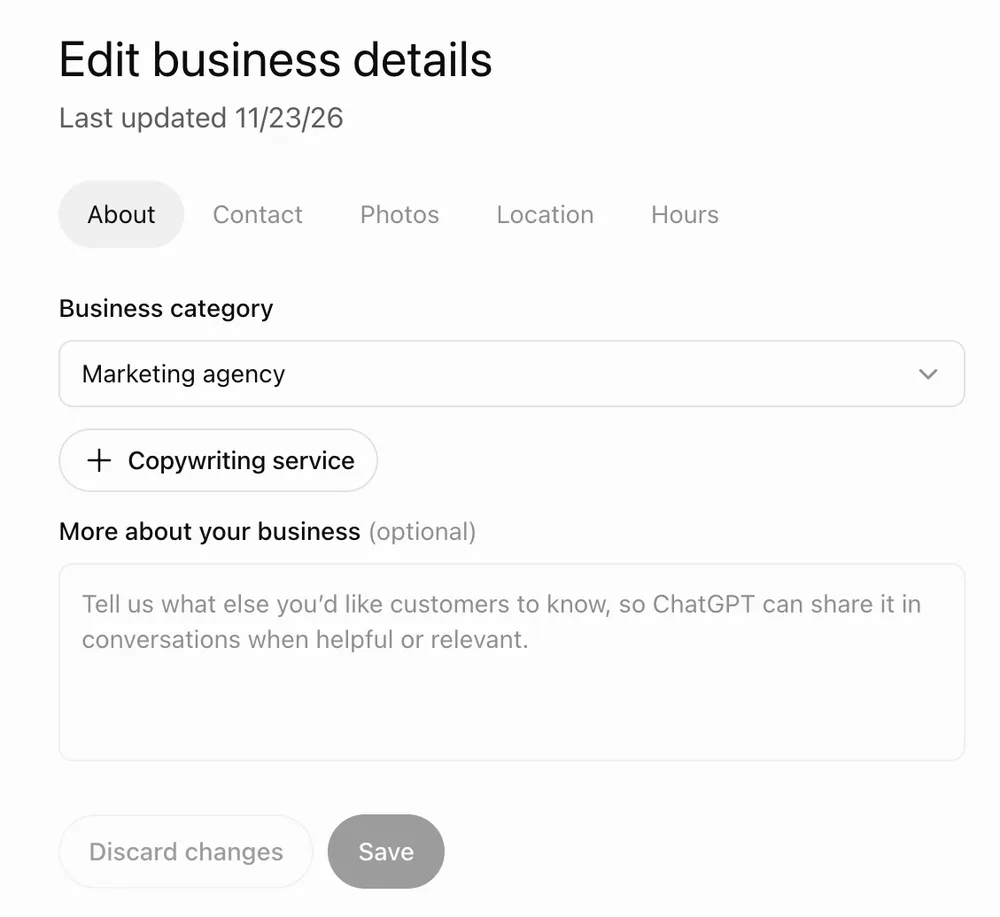
- About. Your business category, extra categories it suggests, and a free-text box called “More about your business.” OpenAI’s hint says it’s what you’d like customers to know, “so ChatGPT can share it in conversations when helpful or relevant.” Don’t leave it empty. More on that below.
- Contact. Phone, business email and website.
- Photos. Upload your own. I added our brand graphics and a few client testimonial cards.
- Location. Street address, suite, and a map pin.
- Hours. Hours for each day, plus your business time zone.
There’s a live preview on the right that shows what people see in ChatGPT, with buttons for directions, your website and a call. OpenAI reviews every change before it goes live, so you’ll see “Reviewing your change” after you hit submit, and it can take a little while to show up.
Here’s the thing I’d tell every client. Check every field, even the ones you didn’t touch. The preview is what ChatGPT will tell someone who asks how to reach you. Your name, address and phone should match your website and your Google Business Profile exactly. It’s the same consistency that matters for local search, and now it matters here too.
Pick your category carefully. I started with “Marketing agency,” which you can see in the screenshot above. It was close, but it isn’t how I’d describe what we do, so I went back into the dropdown and switched to “Business consultant,” which matches our Google profile. Look through the whole list before you settle, then use the extra categories and the “More about your business” box to fill in the rest.
A few tips on the rest:
- Write the “More about your business” box like you’d answer a referral. Who you help, what you do for them, where you work, and what makes you different. Plain, specific and true. OpenAI’s Businesses in ChatGPT policy says you can’t make false or misleading claims about prices, qualifications or likely results, and no unsupported guarantees. So skip “the #1 agency in the Southeast” and say what you actually do.
- Use photos you have the rights to. The policy requires it. Real testimonials are fine. Made-up reviews or endorsements aren’t.
- Get your hours and time zone right. It sounds small, but it’s what ChatGPT will tell someone asking if you’re open.
Step 6: Read Insights the right way
Insights is the part everyone’s excited about. Here’s what mine looks like a couple of days in.
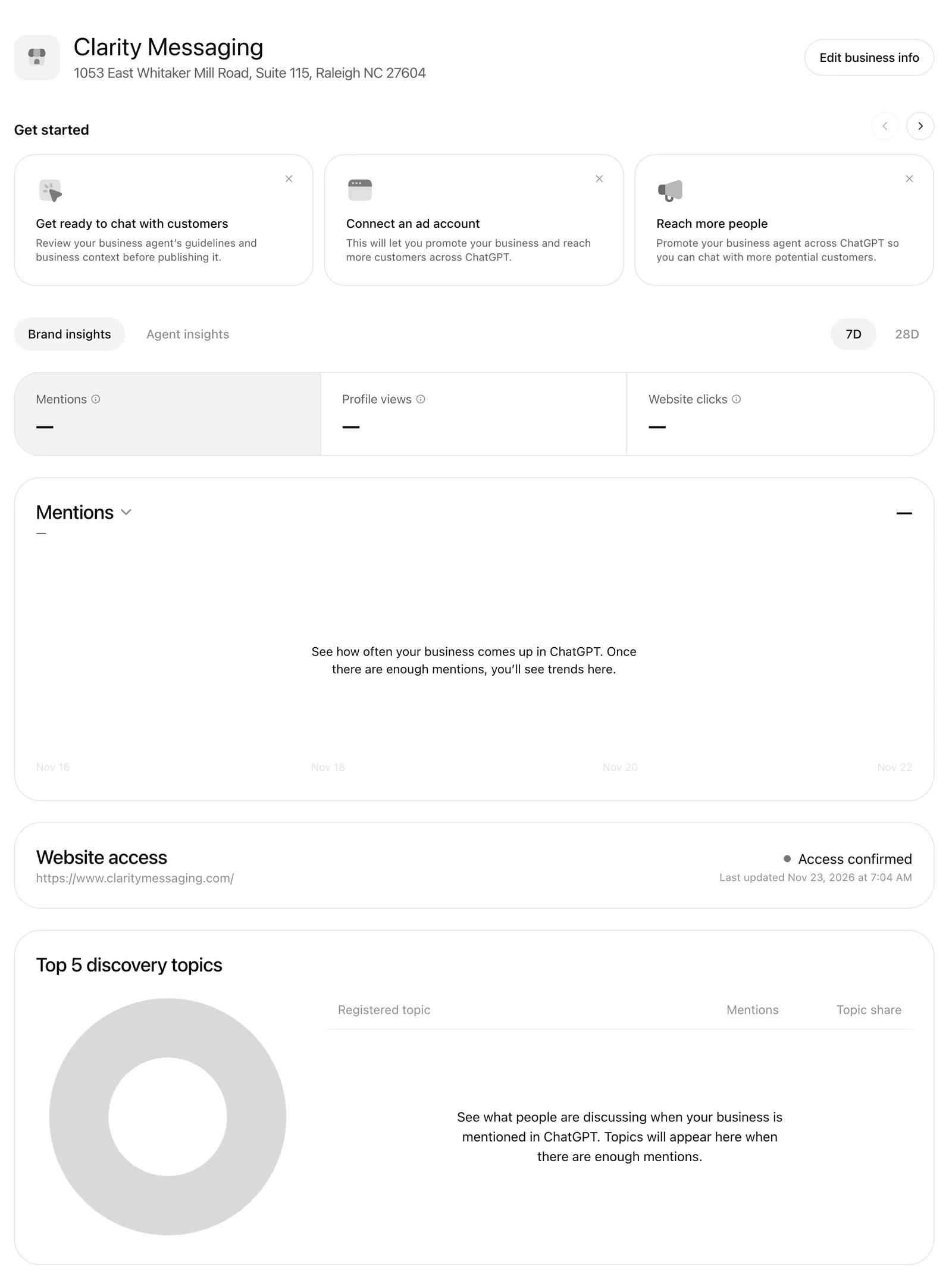
Yes, it’s all dashes. That’s normal, and it’s the most important thing to understand about Insights.
Blank doesn’t mean zero. OpenAI says a blank metric can mean you haven’t reached its reporting threshold yet, the data is still being collected, or reporting isn’t available. It doesn’t publish what the threshold is. So don’t panic, and don’t take a screenshot of an empty dashboard to a client meeting as proof of anything.
Here’s what each number means once it fills in:
- Mentions. For an online business, a mention only counts when ChatGPT references your website. Your brand name on its own doesn’t count. For a local business, it counts when ChatGPT shows a result for your location, even without a click.
- Profile views. How often people opened your business profile. This one’s on the dashboard but not in OpenAI’s help article yet.
- Website clicks. How often people clicked through to your site. Clicks, not visits or sales.
- Discovery topics. The common themes in ChatGPT answers that mentioned you. You get your top five.
OpenAI’s help article says Insights covers the past 28 days. My dashboard has a toggle for 7 days or 28 days. There are also two tabs: Brand insights, which is what most of us will use, and Agent insights, which is for businesses that publish a business agent.
What you don’t get is the prompts. OpenAI doesn’t share people’s conversations with businesses. So the discovery topics are your best clue. When they fill in, look at the themes you show up for, then ask which ones you’d expect to see and don’t. Each missing theme is usually a page you haven’t written yet, or a question your site doesn’t answer clearly.
One more panel worth a look: Website access. Mine says “Access confirmed.” My read is that this tells you ChatGPT can reach your site. If yours doesn’t, check that your robots.txt or firewall isn’t blocking OpenAI’s crawlers, because the “mention” only counts when ChatGPT can reference your website.
The Products tab (and what it means for service businesses)
The Products tab is the part I’m most curious about.
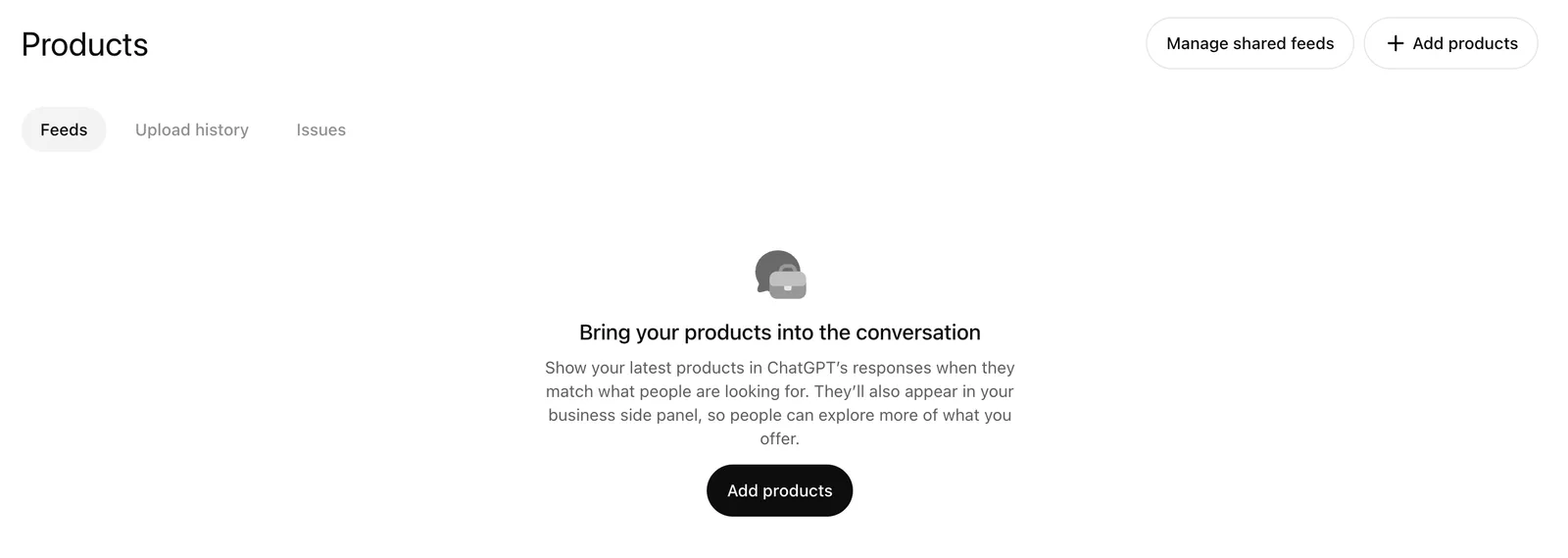
The promise is right there on the screen. Your products show up in ChatGPT’s answers “when they match what people are looking for,” and in your business side panel so people can browse what you offer.
There’s no form for typing in a product. When you click Add products, you get three choices: upload a product data file (a Parquet file or a text feed), use a hosted URL that ChatGPT checks for updates, or connect over SFTP. Shopify stores can use their existing catalog instead. Everyone else follows OpenAI’s product feed spec, and each item needs, at a minimum:
- An ID, a title and a description
- A link to the item’s page on your site, and an image
- Your brand and seller name
- A price and availability (in stock, out of stock and so on)
- The countries you sell to
That’s clearly built for ecommerce. The spec talks about physical and digital items, shipping and returns. It doesn’t say anything about services, consultations or appointments either way, and OpenAI says connecting a feed doesn’t guarantee ChatGPT recommends your products.
So if you sell services, my honest take is this. If you have clearly defined, fixed-price offers with their own page on your site, those are the closest fit. A set package, an audit, a workshop. Something with a name, a price and a page. “Custom quote” work probably doesn’t belong in a product feed.
So that’s what I did. Our Systems Diagnostic has a set price, a set scope and its own page, so it went in first. Here’s how it went:
- I used a hosted URL, not a one-time upload. Our site builds the feed from the same data as the Diagnostic page, so when the price or the copy changes on the site, the feed changes with it. Nobody has to remember to re-upload a spreadsheet.
- The format matters. The hosted URL takes Parquet (OpenAI’s preferred format), gzipped JSONL, CSV or TSV, or plain CSV, TSV or tab-separated text. My first try was a plain .jsonl file, and it was rejected because JSONL has to be gzipped. A plain CSV with a header row went straight through.
- You choose how often it checks. I set ours to look for updates every two weeks. If your prices or availability change more often than that, pick a shorter schedule.
It imported cleanly on the first try, with nothing on the Issues tab.
I’ll update this post once I see whether ChatGPT actually shows it to anyone.
Business agents and ads (optional)
Two cards on the dashboard push you toward the rest of the platform: “Get ready to chat with customers” and “Connect an ad account.”
A business agent is a chat assistant ChatGPT runs for you, trained on your business info and products. It can answer questions and link to your site, but it can’t take payments, book appointments or check orders. Right now OpenAI only offers it to eligible ecommerce and online service businesses in the U.S., and you need a website and approval under its business agents policy.
Ads let you promote that agent across ChatGPT. Sponsored placements are labeled and kept separate from ChatGPT’s normal answers.
You don’t need either one to claim your business. OpenAI is clear that claiming, publishing an agent and advertising are three separate things. And claiming your business doesn’t, by itself, make ChatGPT mention you more often.
Gotchas worth knowing before you start
Here’s my short list. Most of these I learned the easy way, because someone on a forum learned them the hard way first.
- Use the website, not the app. Business Hub wasn’t in the desktop app for me.
- Pick the right account. Whoever claims it is the admin. Use a business account you’ll keep.
- You can’t delete a published profile. OpenAI support can’t delete, unpublish or hide one either. Only unpublished drafts can be deleted. Get it right before you publish.
- Two checks, not one. The claim and Persona are separate, and you need both before anything useful unlocks.
- Legal name first, trade name second. Persona checks your registration documents.
- Check every field before you publish. Name, address, phone and category should match your website and Google profile. Browse the whole category list; I changed mine after a first pass.
- Blank isn’t zero. Give Insights time before reading anything into it.
- Brand mentions alone don’t count. For online businesses, ChatGPT has to reference your website.
- One profile per brand. If you run several brands, each one gets its own profile. There’s no parent account that manages them all.
- Agencies, get invited. The admin can add teammates and grant agency access, and each person uses their own ChatGPT account. Don’t share a login, and don’t forward a claim invitation, because the invite only works for the exact email it was sent to.
Where I land
I think it’s worth 20 minutes for most businesses, mostly as insurance. ChatGPT is going to describe your business to someone whether you claim it or not. Claiming it is how you make sure the phone number, hours and description it shares are the right ones.
What it won’t do is make ChatGPT like you more. That still comes down to whether your website clearly answers the questions people are asking, and whether the rest of the web backs you up. Business Hub just gives you a little more visibility into how that’s going.
If you want help sorting out your profile, or figuring out what your discovery topics are telling you once they fill in, book a free 30-minute call. And if you want the bigger picture, how your website, search presence and the systems behind them fit together, that’s what the Systems Diagnostic is for.
Hopefully this has been helpful. I’ll keep it updated as the beta changes.